

반응형
SMALL
로그인 화면 준비
Power Apps 기본 로그인은 Azure + Microsoft 계정 기반이다. 즉, 따로 로그인 폼을 만들지 않아도 자동으로 사용자 인증 및 권한 처리가 쉽게 구현이 된다.
하지만 여기서는 Custom API + JWT 인증을 위해 별도의 로그인 화면(Form Login)을 구현한다.
- 기존에 만든 Main Screen을 로그인 화면으로 변경
- 화면 이름을 Login Screen으로 수정
- Footer 제거
- Header 텍스트를 "Login"으로 변경
- HeaderContainer2:
    Control: GroupContainer@1.3.0
    Variant: AutoLayout
    Properties:
      Fill: =RGBA(0, 134, 208, 1)           # 헤더 배경색: 파란색
      FillPortions: =0
      Height: =75                           # 헤더 높이 75px
      LayoutDirection: =LayoutDirection.Horizontal
      RadiusBottomLeft: =8                  # 모서리 둥글게
      RadiusBottomRight: =8
      RadiusTopLeft: =8
      RadiusTopRight: =8
    Children:
      - lbl화면이름1:
          Control: Label@2.5.1
          Properties:
            AlignInContainer: =AlignInContainer.Center
            AutoHeight: =true
            BorderColor: =RGBA(0, 18, 107, 1)
            Color: =RGBA(255, 255, 255, 1)  # 텍스트 색상: 흰색
            Font: =Font.'Open Sans'
            Height: =Parent.Height
            PaddingBottom: =10
            PaddingLeft: =10
            PaddingRight: =10
            PaddingTop: =10
            Size: =40
            Text: ="Login"                  # 헤더에 표시될 텍스트
            Width: =Parent.Width * 0.5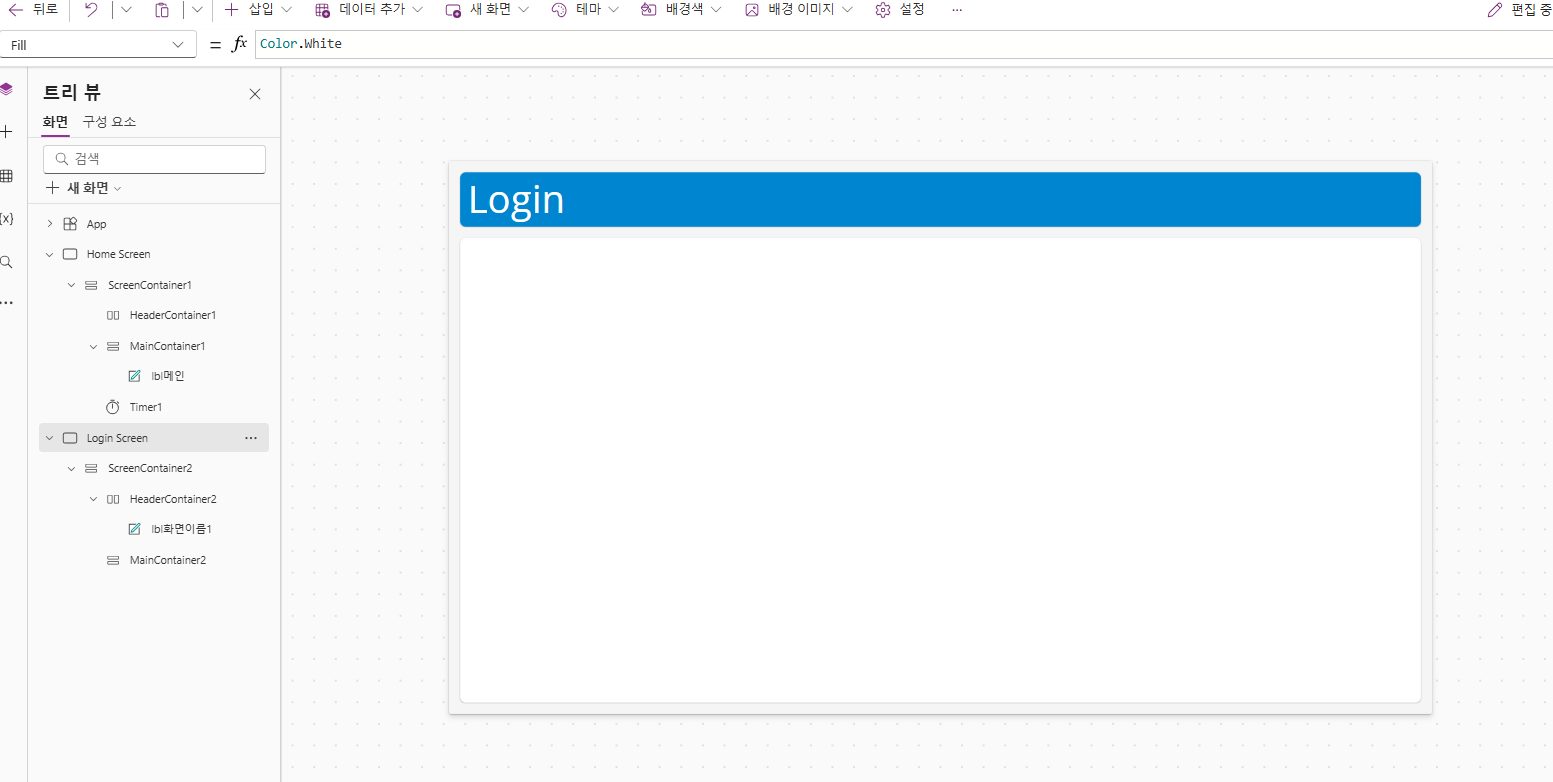
다음은 폼 로그인을 구현할 것이다.
메인 컨테이너 및 Login Container 추가
- 컨테이너 개념
- 세로 컨테이너(Vertical) : 자식 요소를 위→아래로 자동 정렬
- 수평 컨테이너(Horizontal) : 자식 요소를 좌→우로 정렬
- AutoLayout : Flexbox처럼 정렬, 간격, 패딩을 속성으로 제어
- 장점 : 반응형 UI, 구조적 설계, 유지보수 용이
- Power Apps에서 컨테이너(Container)는 여러 컨트롤을 묶어 정렬과 배치를 쉽게 관리할 수 있는 단위이다.
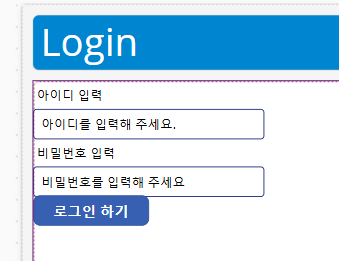
각 요소들의 속성을 다음과 같이 구성해준다.
- MainContainer2:
    Control: GroupContainer@1.3.0
    Variant: AutoLayout
    Properties:
      Fill: =RGBA(255, 255, 255, 1)                 # 메인 컨테이너 배경: 흰색
      LayoutDirection: =LayoutDirection.Vertical    # 내부 요소 세로 정렬
      RadiusBottomLeft: =8                          # 좌하단 모서리 둥글기
      RadiusBottomRight: =8                         # 우하단 모서리 둥글기
      RadiusTopLeft: =8                             # 좌상단 모서리 둥글기
      RadiusTopRight: =8                            # 우상단 모서리 둥글기
    Children:
      - LoginContainer:
          Control: GroupContainer@1.3.0
          Variant: AutoLayout
          Properties:
            AlignInContainer: =AlignInContainer.Center       # 부모(MainContainer2) 안에서 중앙 배치
            BorderColor: =RGBA(0, 0, 0, 0)                   # 테두리 색상 없음 (투명)
            BorderStyle: =BorderStyle.None                   # 테두리 스타일 없음
            DropShadow: =DropShadow.None                     # 그림자 효과 없음
            LayoutAlignItems: =LayoutAlignItems.Center       # 자식 요소를 컨테이너의 중앙에 맞춤
            LayoutDirection: =LayoutDirection.Vertical       # 내부 요소 세로 정렬
            LayoutGap: =10                                   # 자식 요소 간 간격 10px
            LayoutJustifyContent: =LayoutJustifyContent.Center # 세로 방향 중앙 배치
            PaddingLeft: =30                                 # 좌측 여백 30px
            PaddingRight: =30                                # 우측 여백 30px
          Children:
            - lbl아이디:
                Control: Label@2.5.1
                Properties:
                  BorderColor: =RGBA(0, 18, 107, 1)          # 테두리 색상: 진한 파란색
                  Font: =Font.'Open Sans'                    # 글꼴: Open Sans
                  Text: ="아이디 입력"                        # 표시 텍스트
                  Width: =Parent.Width*0.5                   # 부모의 50% 너비
            - txt아이디:
                Control: Classic/TextInput@2.3.2
                Properties:
                  BorderColor: =RGBA(0, 18, 107, 1)          # 테두리 색상: 진한 파란색
                  Default: =""                               # 기본값 비움
                  Font: =Font.'Open Sans'
                  HintText: ="아이디를 입력해 주세요."
                  HoverBorderColor: =RGBA(0, 18, 107, 1)     # 마우스 오버 시 테두리 유지
                  HoverFill: =RGBA(186, 202, 226, 1)         # 마우스 오버 시 배경색 연한 파랑
                  Width: =Parent.Width*0.5
            - lbl비번:
                Control: Label@2.5.1
                Properties:
                  BorderColor: =RGBA(0, 18, 107, 1)
                  Font: =Font.'Open Sans'
                  Text: ="비밀번호 입력"
                  Width: =Parent.Width*0.5
            - txt비번:
                Control: Classic/TextInput@2.3.2
                Properties:
                  BorderColor: =RGBA(0, 18, 107, 1)
                  Default: =""                               # 기본값 비움
                  Font: =Font.'Open Sans'
                  HintText: ="비밀번호를 입력해 주세요."
                  HoverBorderColor: =RGBA(0, 18, 107, 1)
                  HoverFill: =RGBA(186, 202, 226, 1)
                  Width: =Parent.Width*0.5
            - btn로그인:
                Control: Classic/Button@2.2.0
                Properties:
                  BorderColor: =ColorFade(Self.Fill, -15%)   # 버튼 배경색(Fill)보다 15% 어두운 테두리
                  Color: =RGBA(255, 255, 255, 1)             # 버튼 텍스트: 흰색
                  DisabledBorderColor: =RGBA(166, 166, 166, 1) # 비활성화 상태 테두리 회색
                  Fill: =RGBA(56, 96, 178, 1)                # 버튼 배경: 파란색 계열
                  Font: =Font.'Open Sans'
                  HoverBorderColor: =ColorFade(Self.BorderColor, 20%) # 마우스 오버 시 테두리 강조
                  HoverColor: =RGBA(255, 255, 255, 1)        # 마우스 오버 시 텍스트: 흰색
                  HoverFill: =ColorFade(RGBA(56, 96, 178, 1), -20%) # 마우스 오버 시 배경색 어둡게
                  PressedBorderColor: =Self.Fill             # 클릭 시 테두리 = 배경색
                  PressedColor: =Self.Fill                   # 클릭 시 텍스트 = 배경색 (실제 보이지 않음)
                  PressedFill: =Self.Color                   # 클릭 시 배경색 = 텍스트색 (반전 효과)
                  Text: ="로그인 하기"                       # 버튼 표시 텍스트
                  Width: =Parent.Width*0.5                   # 부모의 50% 너비
참고
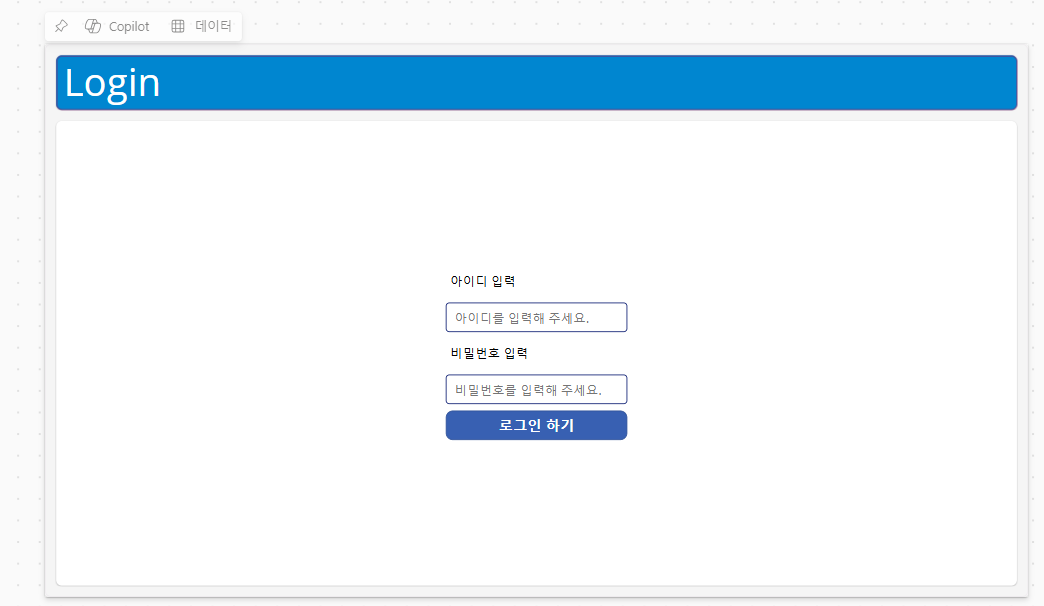
- TextInput은 Default 값을 비워두고 HintText만 사용해야, 입력 전에는 안내 문구만 보이고 실제 값은 비어 있게 된다.
- LoginContainer가 세로 컨테이너이므로 아이디 → 비밀번호 → 버튼 순서대로 자동 정렬된다.
반응형
LIST
'프로젝트 > 출퇴근시스템-POWERAPPS' 카테고리의 다른 글
| 출퇴근 시스템 - 폼 로그인 기반 JWT API를 PowerApps 커넥터로 연결하는 방법 (0) | 2025.09.21 |
|---|---|
| 출퇴근 시스템 - JWT API 구현 (0) | 2025.09.16 |
| 출퇴근 시스템 - 앱 만들기 시작, 앱 도입 화면 구현 (0) | 2025.09.05 |
| 출퇴근 시스템- 테이블 구축 (1) | 2025.08.31 |
| Power Apps 기반 출퇴근 인증 시스템 프로젝트 (0) | 2025.08.24 |